WhatsApp marketing

WhatsApp marketing through Meta's official API, with consent and the 24-hour window enforced

EmailPro connects your WhatsApp Business number through Meta's official API only. You write message templates and submit them to Meta for approval, automations send approved templates to contacts who opted in to WhatsApp, and your team answers replies from a shared inbox while Meta's 24-hour window is open. Every conversation is kept on the customer's record in the CRM.

24 hours
after a customer writes, your team may answer freely; outside that window only an approved template can be sent
3 categories
of template, marketing, utility and authentication, each tracked from draft to approved, rejected or paused
Official only
no unofficial connection that can get a number banned without appeal

What can you do with WhatsApp in EmailPro?

WhatsApp is a conversation channel with strict rules, so every part of it is built around those rules rather than around a send button.

Write and submit templates

Write a template, choose its category and language, and submit it to Meta from the product. Each template shows its real state: draft, pending review, approved, rejected with Meta's reason, or paused because recipients blocked it.

Send from automations

An automation step sends an approved template to each contact who said yes to WhatsApp. Everyone else skips the step, and the automation is refused at activation if it could not send at all.

Answer in a shared inbox

WhatsApp, Messenger, Instagram and website chat arrive in one inbox. Assign a conversation, snooze it or mark it done; the composer shows how much of the 24-hour window is left.

Start a flow from a reply

A customer answering on WhatsApp is a trigger: tag them, open a ticket, notify the owner or hand the conversation to a person while the window is still open.

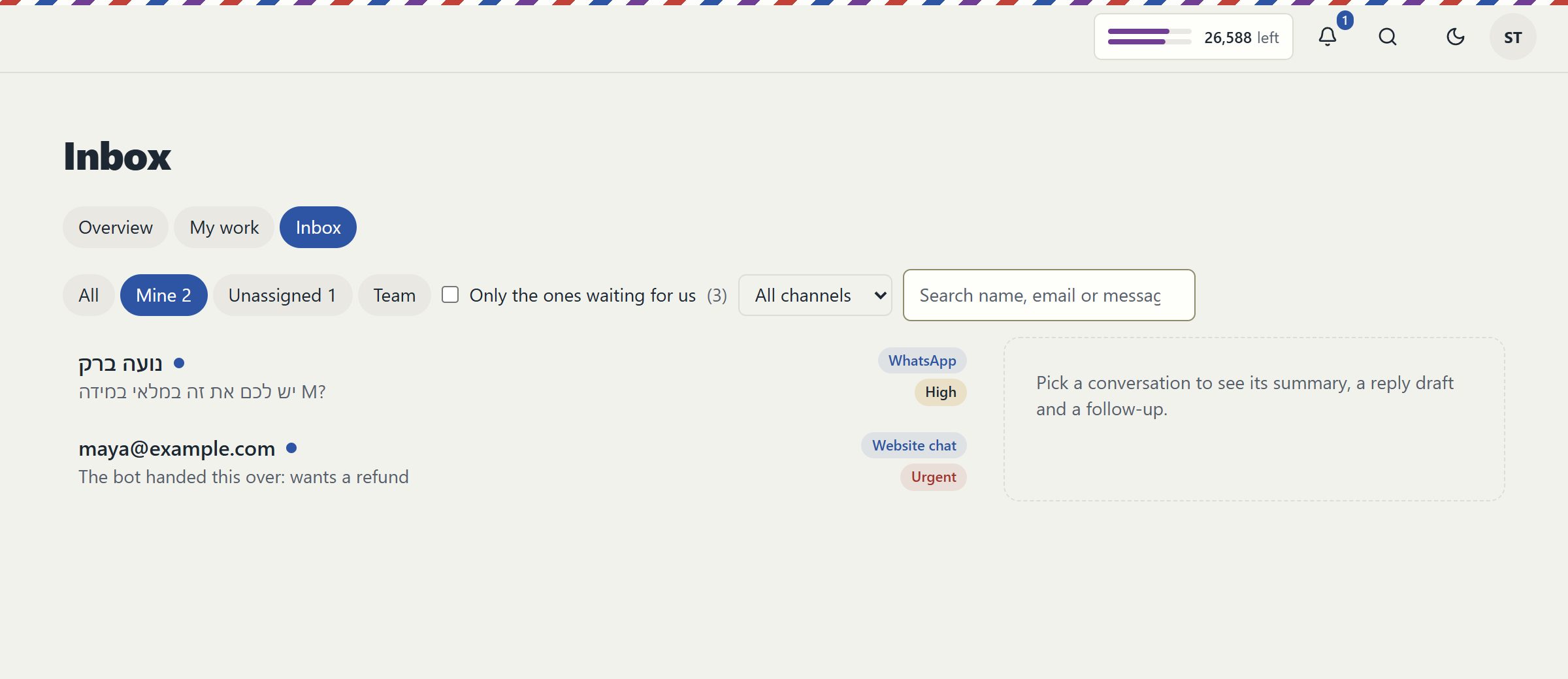
The EmailPro shared inbox with filters for mine, unassigned and team, a channel selector, and a WhatsApp conversation and a website chat handed over by the bot
The shared inbox: conversations from every messaging channel in one list, filtered by who is handling them. Real EmailPro screen with example data; the names and numbers are not a customer's.

What may you send on WhatsApp, and when?

These are Meta's rules as EmailPro enforces them. Automations are stricter than Meta: they send any template, utility included, only to contacts with WhatsApp consent.

SituationWhat you may sendConsent needed
The customer wrote in the last 24 hoursAny reply, written by your team or an approved AI agentNone beyond the conversation they started
The window is closedOnly a template Meta approvedDepends on the template's category
Marketing templateA promotion, launch or offerA WhatsApp yes on the contact's latest consent record
Utility templateAn order update, booking reminder or account noticeSent by a person from the contact record: an existing customer relationship. From an automation: a WhatsApp yes, like marketing
The person asked to stopNothing, on any channelA new opt-in that they give themselves

Meta charges the business per message under Meta's own rates, and a new number starts with a daily limit on how many people it can reach. That is why WhatsApp volume is never sold here as a flat allowance.

How do you connect a WhatsApp Business number?

  1. Verify your business with Meta

    WhatsApp's official platform requires a verified Meta business account and a phone number that is not already registered on the WhatsApp app.

  2. Connect the number

    Connect the account in EmailPro settings. Your access token is stored encrypted and never reaches the browser.

  3. Submit your first templates

    Write a welcome, a reminder and one marketing template, and submit them. EmailPro will not submit a marketing template without the advertising label and a way to opt out, which Israeli law requires.

  4. Switch on the automations

    Add a WhatsApp step to the automations that need it and connect the inbox to the people who will answer.

Why the window and the template matter more than the send button

WhatsApp looks like a messaging app, but for a business it is a regulated channel. For 24 hours after a customer writes to you, you may reply with anything. After that you may send only a template that Meta approved in advance. A tool that lets you type into a closed window fails at the worst moment, usually at night, on a real customer.

So the rule lives in one place and every surface asks it: the inbox greys the composer and shows the time left, an automation that depends on an open window is refused when you switch it on, the contact record checks consent before anything leaves, and an AI agent is told why it may not answer. Automations take the strictest line: any template they send, utility or marketing, goes only to a contact with a WhatsApp yes on their consent record.

Templates have a lifecycle of their own. Meta can reject a template with a reason, approve it, and later pause it because recipients started blocking the number. EmailPro shows each of those states, because a campaign that silently stops sending is worse than one that never started.

When is WhatsApp in EmailPro the wrong choice?

Three cases where we would tell you to wait or use another channel.

You want to broadcast to a list today

Campaigns in EmailPro are email or SMS. WhatsApp marketing runs through automations that send an approved template to each opted-in contact, not through a one-off broadcast button. If you need a single blast to a list this week, an SMS or email campaign is the honest answer.

You need WhatsApp working tomorrow morning

Connecting through the official platform depends on Meta: business verification, and Meta's review of our app, which is still in progress. Until both are done, connecting a number may not be available on your account. Anyone who promises instant WhatsApp is usually using an unofficial connection.

Your contacts never agreed to WhatsApp

A marketing template goes only to people with a WhatsApp yes on their consent record. If your list agreed to email only, start by collecting WhatsApp consent on a form, at checkout or in a first conversation.

Clear answers

WhatsApp marketing: common questions

Try it on your own customers

Open an account, import a list with its consent records and connect one channel. Nothing is sent until a person approves it.

Open an account

Explore the current workspace

Build the page. Write the email. Keep the customer in context.

The builders, CRM and operational tools now share more of the journey. Start with a draft, review the next action, and follow the recorded result in the same workspace.

A canvas for websites and landing pages

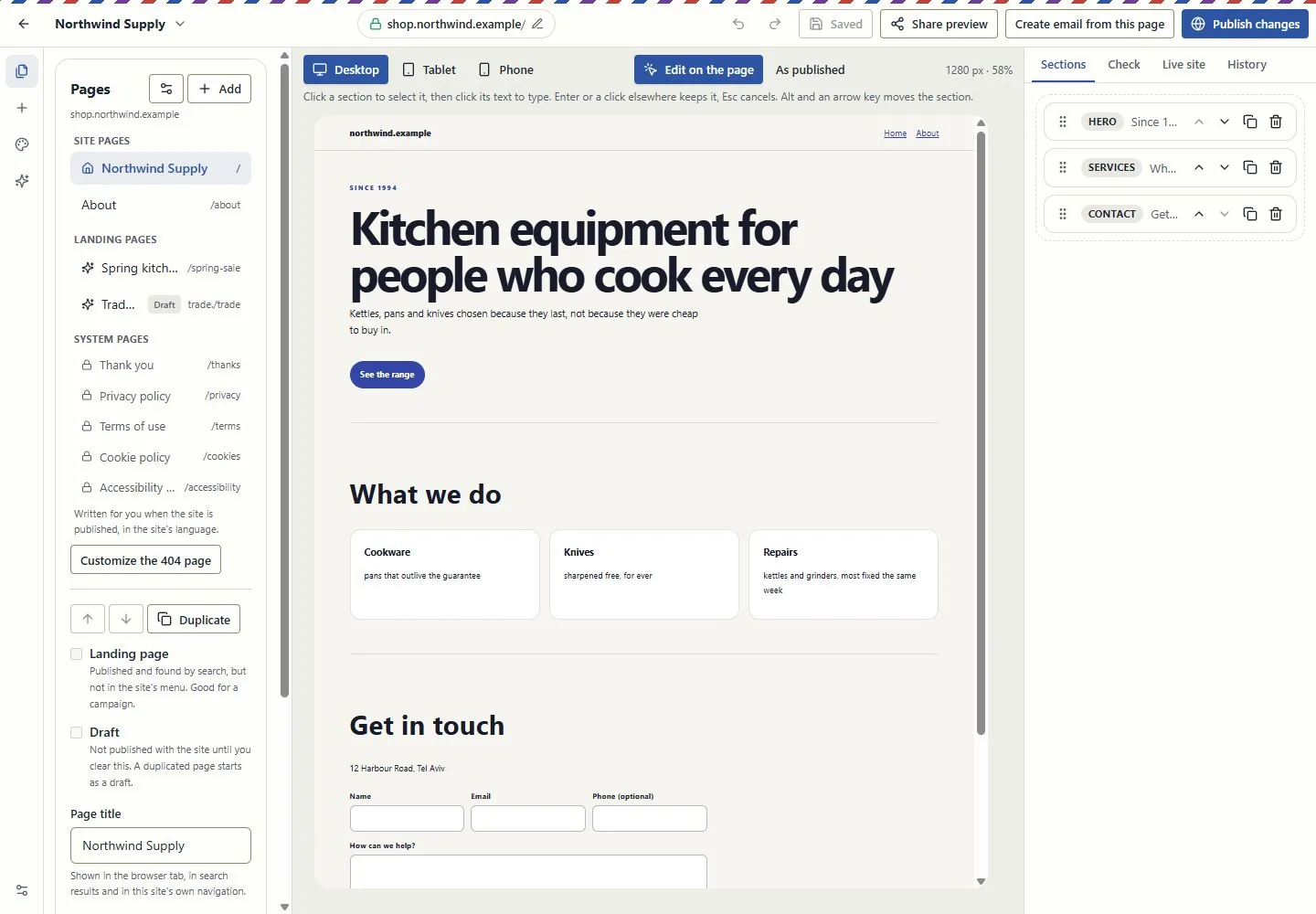
Edit in the page itself, switch between desktop, tablet and phone, and review changes before publishing. Pages, versions and professional kits use the shared canvas in Brand My Inbox and EmailPro.

Forms can create CRM inquiries. Joining a mailing list requires a separate consent choice.

Explore this capability: A canvas for websites and landing pages
A canvas for websites and landing pages
Current EmailPro screens with demonstration data, captured 26 October 2026. Examples are not customer results.Open full-size screen: A canvas for websites and landing pages

Design the email in the email itself

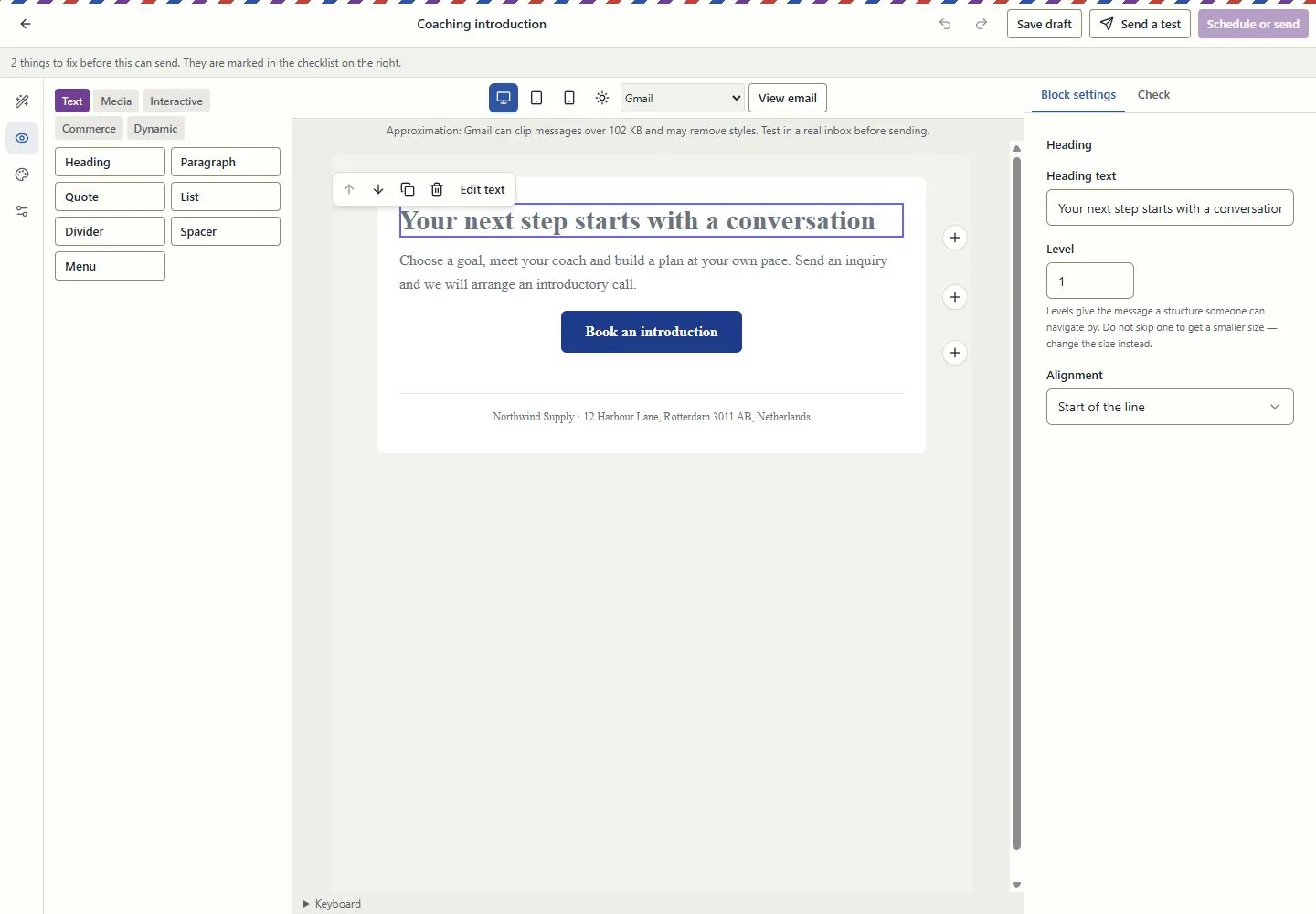
Work at real reading widths, edit text in the email, reorder blocks and inspect dark-mode and mail-client simulations. Keep the landing page and campaign connected through the supported conversion tools.

A simulation is not an inbox test. Review recipients, exclusions and sender identity before sending.

Explore this capability: Design the email in the email itself
Design the email in the email itself
Current EmailPro screens with demonstration data, captured 26 October 2026. Examples are not customer results.Open full-size screen: Design the email in the email itself

Customer work beyond a contact list

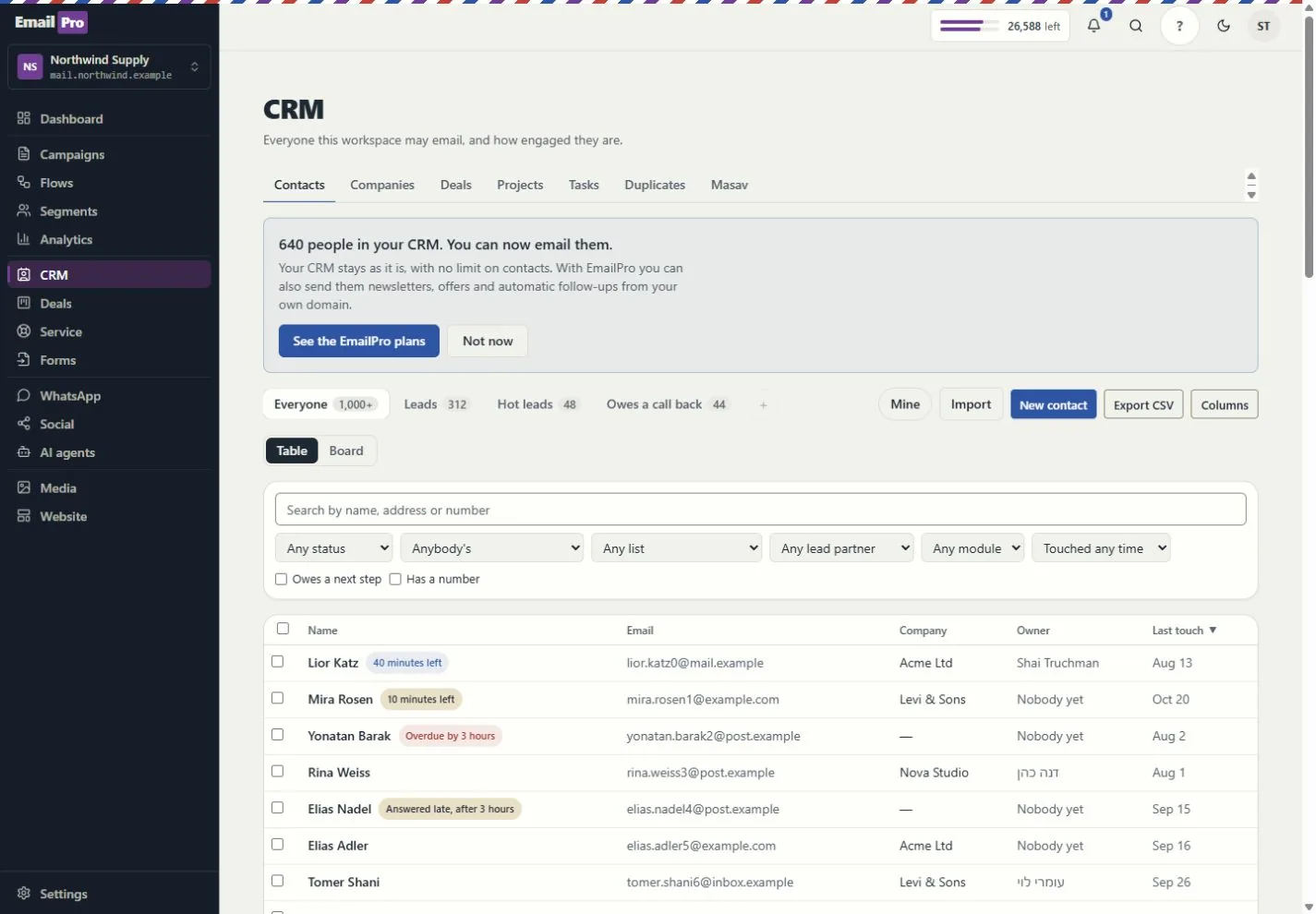
Connect contacts, companies, deals, service requests and projects. Use owners, queues, tasks, deliverables and approvals to see who does what next.

Visibility follows roles and record access. Inquiry forms do not grant marketing consent.

Explore this capability: Customer work beyond a contact list
Customer work beyond a contact list
Current EmailPro screens with demonstration data, captured 26 October 2026. Examples are not customer results.Open full-size screen: Customer work beyond a contact list
Explore the connected capabilities

What each tool does, and what needs a connection

Automations you can inspect

Build event-driven steps, review dependencies and simulation results, and inspect runs and delivery failures. Improvement proposals require review before applying a new version.

Simulation shows configured behaviour; it does not prove a provider will complete a live action.

Projects, capacity and commercial work

Track deliverables, review requests, exceptions, dated hours and retainer periods. Compare assignment and deadline scenarios before changing the project.

Scenario results are estimates based on the recorded inputs, not guaranteed profit or capacity.

Shared knowledge with access boundaries

Give assistants approved company and project context. Review sources, refresh status and access rather than copying customer information into every prompt.

Answers depend on source quality and the permissions of the person asking.

Explainable actions and an operational trace

Review the proposed action, scope and cost. Follow the request, plan, approval, tool call and recorded effect; supported MCP tools use the same access rules.

Some actions remain human-only. MCP coverage is documented per tool, not promised for every screen.

Reports with a named source

Use customer journeys, campaign attribution and recorded outcomes. Search and AI visibility distinguish appearances, citations, referrals and conversions.

Google Analytics needs authorised setup; search imports and manual experiments are not live ranking or citation guarantees.

Booking inside the customer journey

Use availability, meeting pages and the coaching kits. Link an existing payment request to the appointment and keep the customer record in context.

Google Calendar and payment providers need authorisation. Linking a request does not charge the customer or make payment a booking condition.

Email quotas and SMS funding, explained

Email uses the monthly plan allowance. Israeli SMS uses verified prepaid packages; international SMS and calling use the wallet. SMS counts parts, not just recipients.

An own-provider account is separate. Provider charges and connection requirements still apply.

Connections, plugins and delivery logs

Connect supported providers, the WordPress lead plugin, Zapier or Make adapters, and signed webhooks. Inspect connection health and failed webhook deliveries.

Installation and authorisation are required. Marketplace publication is not claimed.

Workspace structure you can take with you

Export supported fields, pipelines, modules, lists, segments, templates, forms and automation definitions. Preview import compatibility before writing.

Structural export is not a full backup or a promise that every external platform can import it.

Creator and agency operations

Connect campaigns, creator codes, orders, refunds and gifting with supported store data. Keep client review, project deliverables and retainer work in the same operating context.

Store connections and client-portal access require setup and the relevant entitlement. Attribution is based on recorded data, not guaranteed sales.

Test assistants before using them

Run the supported business-task evaluations and review saved results, failures and model cost. Inspect media review and cleaning status before using uploaded content.

An internal evaluation is not an independent security audit. Media cleaning and external providers depend on the configured runtime.
Check the plan, permissions and connection requirements before activation.