Companies and contacts
Names, addresses, phone numbers and the link from each person to their company. A contact is matched by email, then by phone, so a person already in your CRM is not created twice.
CRM migration
You can move companies, contacts, deals and notes from HubSpot, Pipedrive, Microsoft Dynamics 365, Salesforce, Zoho, monday.com or Fireberry. You map the fields, read a preview that writes nothing, and start the import yourself. An import only fills empty fields, and a contact name that disagrees with yours waits for a person to decide.
The importers are in the product and have been tested against recorded vendor answers, not yet against a live customer account. We check the first live import from each vendor together with you.
The record types your team works with every day, and the links between them, so a deal still points at its company and a note still sits on its contact.
Names, addresses, phone numbers and the link from each person to their company. A contact is matched by email, then by phone, so a person already in your CRM is not created twice.
Name, value, stage and close date. A stage is matched by name to the open stages of your default pipeline. A name with no match lands on the first open stage, and the run reports it so you can move those deals.
Text notes come with the record they belong to, from the vendors that expose them: HubSpot, Pipedrive, Dynamics 365 and Fireberry. Each note lands on the record it belongs to, so the history stays with the customer.
HubSpot, Pipedrive, Salesforce and Zoho list their own fields on the mapping screen. Point one at a custom field of yours and its value is filled in where your record has none.
Every imported record remembers where it came from. Run the import again next week and existing records are matched by that link, so nothing doubles and only empty details are filled.
Each run records what was read, created, matched and skipped, with the mapping version it used. You can look back at any earlier run and see exactly which rules applied.
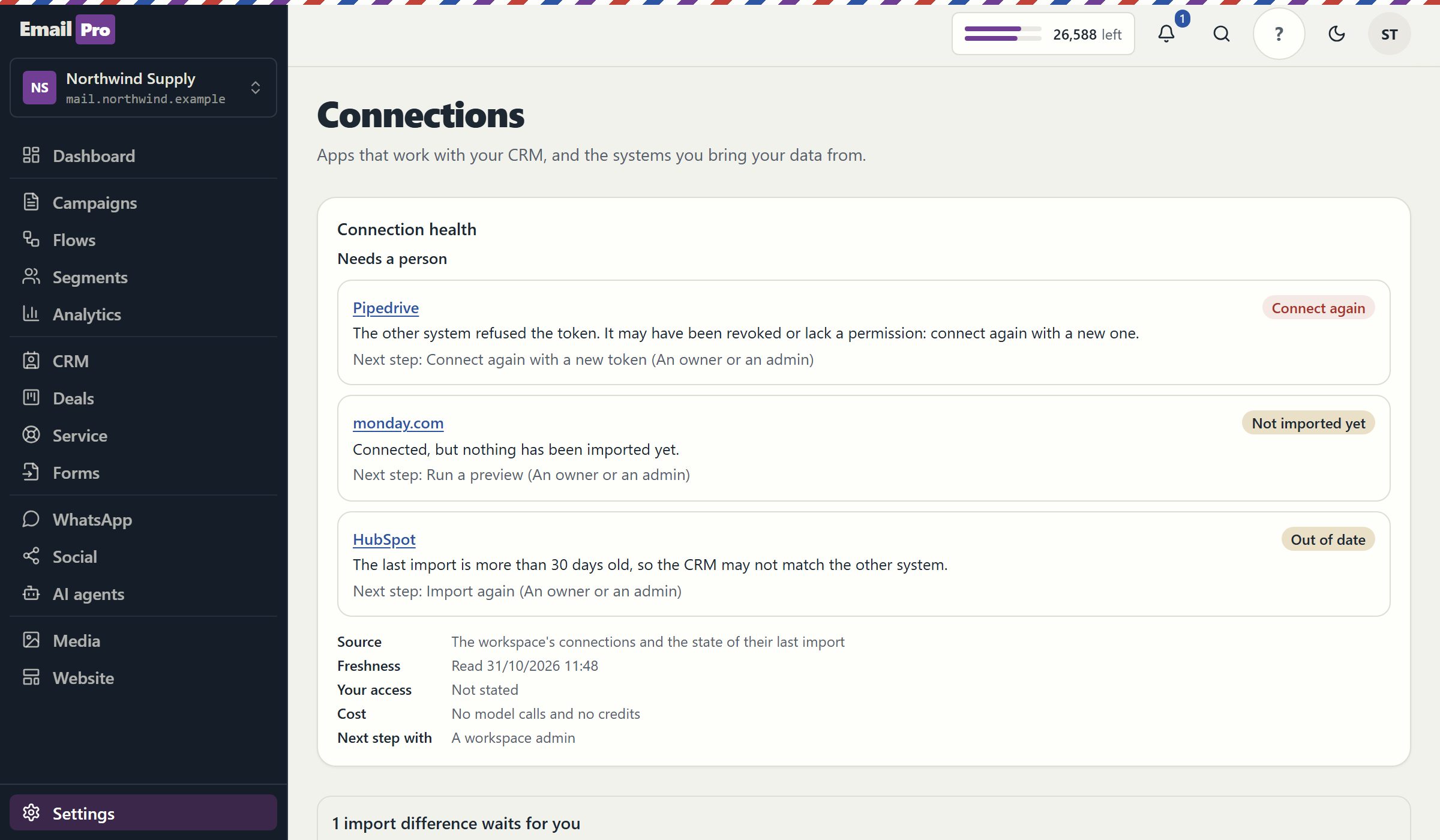
Every source is read with a credential you create and can withdraw in that system. It is stored encrypted, and it is never shown again after you paste it.
| Source | How it connects | What it brings | Lists its custom fields |
|---|---|---|---|
| HubSpot | Private app token | Companies, contacts, deals, notes | Yes |
| Pipedrive | API token and company domain | Companies, contacts, deals, notes | Yes |
| Microsoft Dynamics 365 | Entra app on commercial Dataverse | Companies, contacts, deals, notes | Not yet |
| Salesforce | Connected app on your My Domain | Companies, contacts, deals | Yes |
| Zoho CRM | Self client and refresh token | Companies, contacts, deals | Yes |
| monday.com | API token and board | Contacts | Not yet |
| Fireberry | API token | Companies, contacts, deals, notes | Not yet |
Email address, deal stage, owner and amounts are never remapped. They are identity, relationships and money, so they keep the meaning they have in the source.
Create a token or app in the other CRM and paste it into Connections. It stays encrypted, and disconnecting stops any further reading at once.
Choose where each source field lands, stream by stream. Saving creates a new version, and the preview stays locked until the mapping on your screen is the one that is saved.
The preview samples the first pages and reports matches, skipped records and values that disagree. It creates nothing, so you can run it as often as you like.
An owner or admin starts the run and can pause, resume or cancel it. Afterwards, open the conflict list and choose, for each contact name, to keep yours or take theirs.
A value already in your CRM is there because someone on your team put it there, or because it passed an earlier check. Overwriting it from another system loses that work without anyone noticing, and the damage only shows up months later when a salesperson calls the wrong number. So an import writes to an empty field and leaves a filled one alone.
That rule alone would hide a problem, because the two systems can disagree about who a person is and nobody would know. So when a contact's first or last name differs, the difference is kept as an open conflict, with the current name and the incoming one side by side. A person chooses, the choice goes into the audit trail, and a later run refreshes the incoming value instead of adding a second row. A contact you erased stays erased: an import skips them.
The same care applies to changes made while you work. A run takes a snapshot of its settings when it starts. If someone saves a new mapping after your preview, the start is refused and you are asked to look again, so nothing is imported under rules nobody checked. Disconnecting or replacing the credential mid-run stops the next page from being read.
Most moves fit. These are the cases where we would rather tell you now than halfway through.
Cancelling stops a run; it does not remove what was already written. That is why the preview comes first. Records that arrived stay, and you remove them the same way as any other record.
Attachments and record owners are not imported today. Assign owners here after the move, and keep the files in the old system until you have decided where they belong.
These two receive approved changes but cannot be imported from, because their read answers are not documented well enough to trust. A contact list exported to CSV is the way in.
Clear answers
Open an account, connect the CRM you use today and read what would happen. Nothing is written until you start the import.