Home
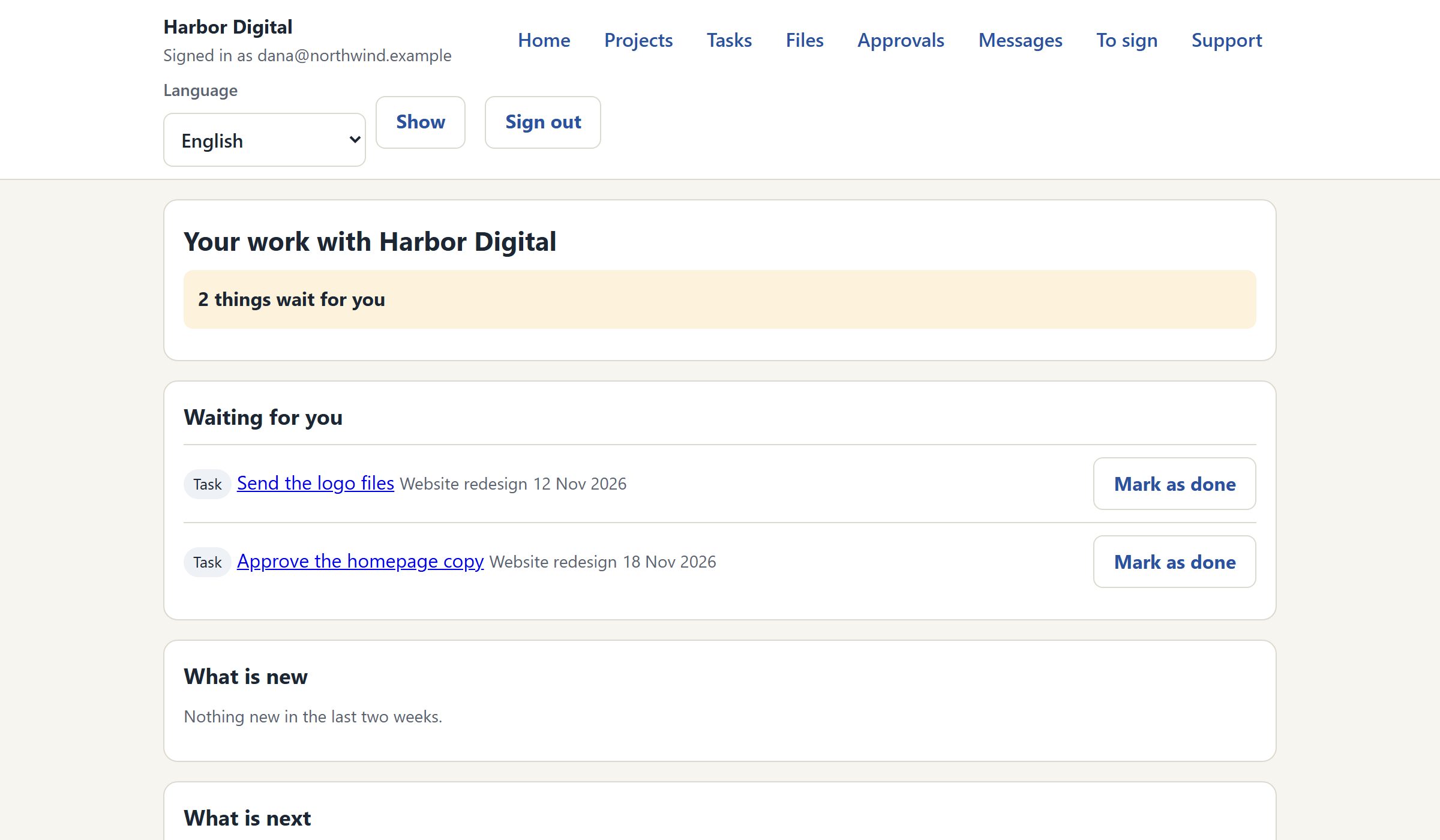
What is waiting for the client: open tasks, new files and active projects. It is the one module that cannot be switched off.
Client portal
The client portal in EmailPro and Brand My Inbox is one place where a client sees their projects, tasks, files and approvals. Every item stays private until you share it, and the server sends the client only fields marked as allowed, so budgets, hours and internal notes never leave. Clients sign in with an emailed link, no password, and can invite colleagues from their own company domain.
Five modules are live. Each can be switched on or off for the workspace and again for a single project, and the project's setting wins.
What is waiting for the client: open tasks, new files and active projects. It is the one module that cannot be switched off.
The name, status, kind and dates of each project, and the milestones you shared. A client admin sees every project of their company, including ones opened later.
Tasks shared with the client side or with one person there. The client marks a task done and can add it to their own calendar as an .ics file.
Shared folders. Downloads go through a signed link that lasts five minutes and is checked again when opened; uploads go only to folders where you allowed them, after a scan.
The client approves a deliverable in the same review where they see the version. The module reads the deliverable review of the Creator Operations add-on, so it appears in workspaces that have it.
A client admin sees who from their company is in the portal and can invite colleagues as members or viewers.
Five roles, each defined by action. What is not in this table, such as internal money, internal hours, internal notes and other clients, is granted to no role at all.
| Role | What they see | What they can do |
|---|---|---|
| Client admin | Every project of their company, now and later | Complete tasks, upload, approve, comment and invite colleagues |
| Client member | Only the projects chosen for them | The same as an admin, without inviting |
| Client accounting | The home page | Nothing else yet: the invoices module is not built |
| Viewer | What was shared with them | Read only: no completing, uploading or approving |
| Outside worker | Only the tasks and folders shared with them | Complete tasks, upload and comment; no project pages, money or contacts |
Five outside workers per workspace are free. The sixth is refused with a message rather than added quietly.
In the portal settings choose which modules are open in the workspace, then adjust any project. The project's choice overrides the workspace.
From Portal access pick a contact and a role. The invitation is emailed, and signing in is a link that works for fifteen minutes.
A milestone, a task or a folder, with the whole client side or one person. The first share in a project asks for explicit confirmation, so nothing goes out by mistake.
A client admin invites colleagues from their own company domain. You can switch this off in the settings if you prefer to invite everyone yourself.
A portal that shows the client everything by default teaches the team to keep things outside the system: a note about the client goes to a chat app, and the internal estimate lives in a file on someone's laptop. Here the default is the other way round. An item stays with you until someone shares it, and every share is logged with who shared it and when. Unsharing does not erase the record; it marks it revoked, with the name and the time.
The second layer is the field list. Even a shared project does not send its budget to the client, because the server does not read that column at all when the request comes from the portal. Each record is built field by field from an allow-list, and a new column that nobody classified fails a test, so it cannot leak quietly. The boundary sits on the server rather than on the screen, which is why a client who calls the portal's data directly gets the same allowed fields and no more.
An AI assistant over MCP can prepare a portal invitation or a share, and both are saved as pending. Nobody outside sees them until a person on your team confirms them on screen, because no tool confirms. The assistant can also show a preview of what the client will see, built from the same filtered answers.
This is the first stage of the portal. These are the things it does not do yet, so you do not discover them in front of a client.
Messages, invoices, contracts, tickets and meetings are planned modules and are not built. Until then clients receive those through your usual channels, and the client accounting role shows a home page only.
You can add a logo, one accent colour and a default language in English, Hebrew or Spanish, with the text direction following it. A portal served at your own domain is not available yet.
Sign-in is a one-time link sent by email. There is no password, no Google or Microsoft sign-in and no two-factor step on the client side, so an organisation that requires one of those will have to wait.
Clear answers
Open an account, import a list with its consent records and connect one channel. Nothing is sent until a person approves it.